Spatial Asset Recommender – Context Assets Window
← Previous | Start | Next →
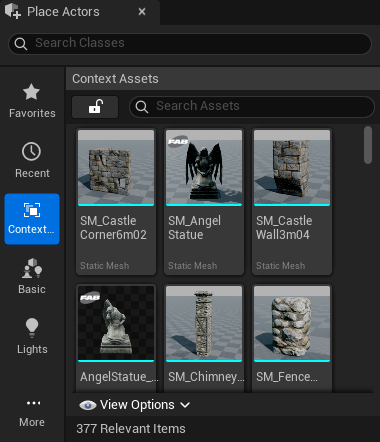
This window can be found in Tools → Context Assets or the Place Actors panel under the same name.
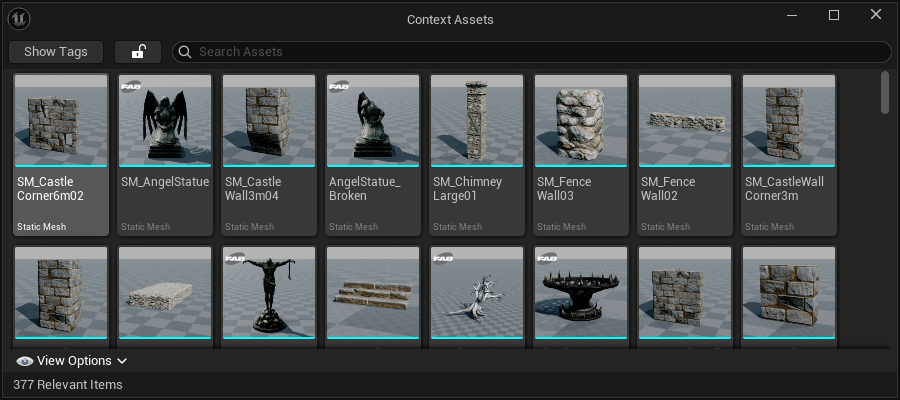
This window is straightforward to understand, as it behaves a lot like the Content Browser. It displays assets that match the current level viewport situation and provides features for filtering that list and comparing the weighted tags of the current situation and specific assets (see below).
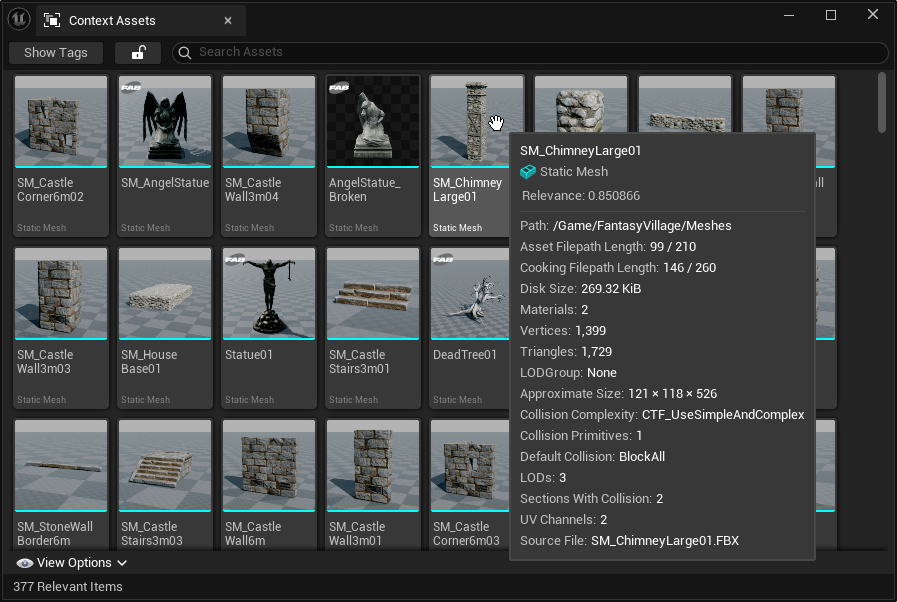
Hovering over an asset gives a standard tooltip, but with a “relevance” value which shows how similar this asset is to the current viewport context. The assets in the Context Assets window are sorted according to this value.
One of the core philosophies of the Spatial Asset Recommender is to provide a seamless and smooth workflow for anyone who needs to place or assign assets in a level. For that purpose, it supports easy drag-and-drop behavior of assets from both the Place Actors panel and the dedicated Context Assets window.
Using the little lock icon, it is possible to “freeze” the current selection, even though the level viewport changes. This can be useful if you want to bring one scenario into a different location—even different levels.
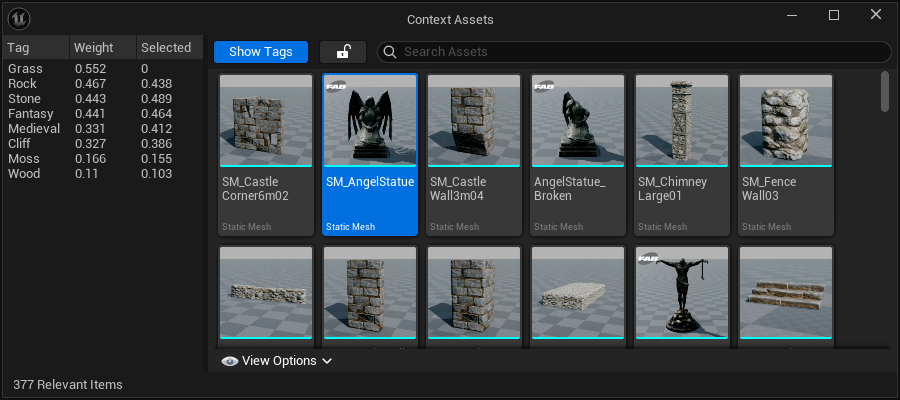
By clicking on the Show Tags button, it is possible to view the calculated weighted tags of the most recent level viewport.
In addition to that, when the user selects an asset in the Context Assets window, the weights associated with the tags of that asset are added to the same table for easy comparison.
Missing tags are displayed with a value of 0.